前言 本人今年主要在负责猿题库 iOS 客户端的开发,本文旨在通过分享猿题库 iOS 客户端开发过程中的技术细节,达到总结和交流的目的。
这是本技术分享系列文章的第三篇。本文涉及的技术细节是:基于 CoreText 的排版引擎。
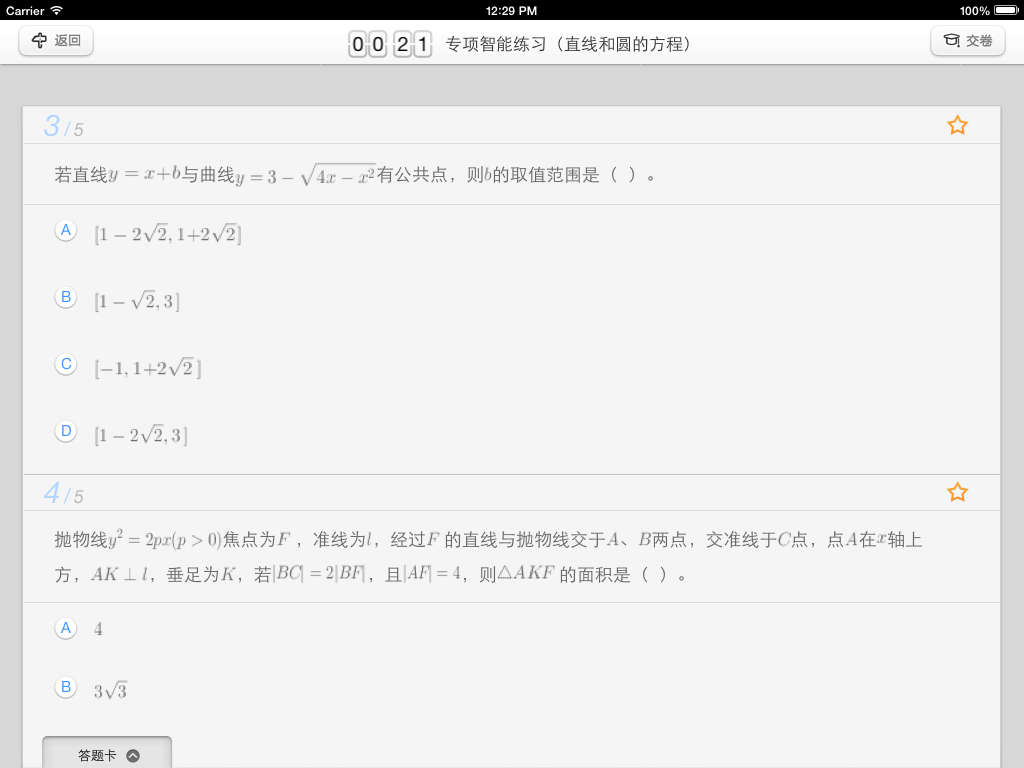
CoreText 概述 因为猿题库的做题和解析界面需要复杂的排版,所以我们基于 CoreText 实现了自己的富文本排版引擎。我们的排版引擎对公式、图片和链接有着良好支持,并且支持各种字体效果混排。对于内容中的图片,支持点击查看大图功能,对于内容中的链接,支持点击操作。
下图是我们应用的一个截图,可以看到公式,图片与文字混排良好。
对于富文本排版,除了可以用 CoreText 实现外,还可以用 UIWebView 实现。我以前写过一篇介绍如何用 UIWebView 进行复杂内容显示和交互的文章 《关于 UIWebView 和 PhoneGap 的总结》 ,里面介绍了使用 UIWebView 如何处理参数传递,同步与异步等问题,感兴趣的同学也可以翻看。
基于 CoreText 来实现和基于 UIWebView 来实现相比,前者有以下好处:
CoreText 占用的内存更少,UIWebView 占用的内存更多。
CoreText 在渲染界面前就可以精确地获得显示内容的高度(只要有了 CTFrame 即可),而 UIWebView 只有渲染出内容后,才能获得内容的高度(而且还需要用 javascript 代码来获取)
CoreText 的 CTFrame 可以在后台线程渲染,UIWebView 的内容只能在主线程(UI 线程)渲染。
基于 CoreText 可以做更好的原生交互效果,交互效果可以更细腻。而 UIWebView 的交互效果都是用 javascript 来实现的,在交互效果上会有一些卡顿存在。例如,在 UIWebView 下,一个简单的按钮按下效果,都无法做到原生按钮的即时和细腻的按下效果。
当然基于 CoreText 的方案也有一些劣势:
CoreText 渲染出来的内容不能像 UIWebView 那样方便地支持内容的复制。
基于 CoreText 来排版,需要自己处理图片排版相关的逻辑,也需要自己处理链接点击操作的支持。
我们最初的猿题库行测第一版采用了基于 UIWebView 来实现,但是做出来发现一些小的交互细节无法做到精致。所以后来的第二版我们就全部转成用 CoreText 实现,虽然实现成本上增加了不少,但是应用的交互效果好多了。
使用 CoreText 也为我们后来的 iPad 版提供了技术积累,因为 iPad 版的页面排版更加复杂,用 UIWebView 是完全无法完成相应的交互和排版需求的。
关于如何基于 CoreText 来做一个排版引擎,我主要参考的是这篇教程:《Core Text Tutorial for iOS: Making a Magazine App》 以及 Nimbus 中的 NIAttributeLabel.m 的实现,在这里我就不重复教程中的内容了,我主要讲一些实现细节。
实现细节 服务端接口 我们在后台实现了一个基于 UBB 的富文本编译器。使用 UBB 的原因是:
UBB 相对于 HTML 来说,虽然功能较简单,但是能完全满足我们对于富文本排版的需求。
做一个 UBB 的语法解析器比较简单,便于我们将 UBB 渲染到各个平台上。
为了简化 iOS 端的实现,我们将 UBB 的语法解析在服务器端完成。服务器端提供了接口,可以直接获得将 UBB 解析成类似 HTML 的 文件对象模型 (DOM) 的树型数据结构。有了这个树型数据结构,iOS 端渲染就简单多了,无非就是递归遍历树型节点,将相关的内容转换成 NSAttributeString 即可,之后将 NSAttrubiteString 转成 CoreText 的 CTFrame 即可用于界面的绘制。
支持图文混排 支持图文混排在教程:《Core Text Tutorial for iOS: Making a Magazine App》 中有介绍,我们在解析 DOM 树遇到图片节点时,则将该内容转成一个空格,随后设置该空格在绘制时,需要我们自己指定宽高相关信息,而宽高信息在图片节点中都有提供。这样,CoreText 引擎在绘制时,就会把相关的图片位置留空,之后我们将图片异步下来下来后,使用 CoreGraph 相关的 API 将图片再画在界面上,就实现了图文混排功能。
下面的相关的示例代码:
1 2 3 4 5 6 7 8 9 10 11 12 13 14 15 16 17 18 19 20 21 22 23 24 25 26 27 28 29 30 31 32 33 34 35 36 37 38 39 40 41 42 43 static void deallocCallback( void * ref ){ [(id )ref release]; } static CGFloat ascentCallback( void *ref ){ CGFloat height = [(NSString *)[(NSDictionary *)ref objectForKey:@"height" ] floatValue]; return height/2 + [FrameParserConfig sharedInstance].baselineFromMid; } static CGFloat descentCallback( void *ref ){ CGFloat height = [(NSString *)[(NSDictionary *)ref objectForKey:@"height" ] floatValue]; return height/2 - [FrameParserConfig sharedInstance].baselineFromMid; } static CGFloat widthCallback( void * ref ){ return [(NSString *)[(NSDictionary *)ref objectForKey:@"width" ] floatValue]; } + (void )appendDelegateData:(NSDictionary *)delegateData ToString:(NSMutableAttributedString *)contentString { CTRunDelegateCallbacks callbacks; callbacks.version = kCTRunDelegateCurrentVersion; callbacks.getAscent = ascentCallback; callbacks.getDescent = descentCallback; callbacks.getWidth = widthCallback; callbacks.dealloc = deallocCallback; CTRunDelegateRef delegate = CTRunDelegateCreate (&callbacks, delegateData); [delegateData retain ]; unichar objectReplacementChar = 0xFFFC ; NSString * objectReplacementString = [NSString stringWithCharacters:&objectReplacementChar length:1 ]; NSDictionary * attributes = [self getAttributesWithStyleArray:nil ]; NSMutableAttributedString * space = [[NSMutableAttributedString alloc] initWithString:objectReplacementString attributes:attributes]; CFAttributedStringSetAttribute ((CFMutableAttributedStringRef )space, CFRangeMake (0 , 1 ), kCTRunDelegateAttributeName, delegate); CFRelease (delegate); [contentString appendAttributedString:space]; [space release]; }
这里需要注意的是,用来代替图片的占位符使用空格会带来排版上的异常,具体原因未知,我们猜测是 CoreText 的 bug,参考 Nimbus 的实现后,我们使用 0xFFFC作为占位符,就没有遇到问题了。
支持链接 支持链接点击的主要实现的方式是:
在解析 DOM 树的时候,记录下链接串在整个富文本中的位置信息(包括 offset 和 length)。
在 CoreText 渲染到的 view 上,监听用户操作事件,使用 CTLineGetStringIndexForPosition函数来获得用户点击的位置对应 NSAttributedString 字符串上的位置信息(index)
判断第 2 步得到的 index 是否在第一步记录的各个链接的区间范围内,如果在范围内,则表示用户点击了某一个链接。
这段逻辑的关键代码如下:
1 2 3 4 5 6 7 8 9 10 11 12 13 14 15 16 17 18 19 20 21 22 23 24 25 26 27 28 29 30 31 32 + (LinkData *)touchLinkInView:(UIView *)view atPoint:(CGPoint )point data:(CTTableViewCellData *)data { CTFrameRef textFrame = data.ctFrame; CFArrayRef lines = CTFrameGetLines (textFrame); if (!lines) return nil ; CFIndex count = CFArrayGetCount (lines); LinkData *foundLink = nil ; CGPoint origins[count]; CTFrameGetLineOrigins (textFrame, CFRangeMake (0 ,0 ), origins); CGAffineTransform transform = CGAffineTransformScale (CGAffineTransformMakeTranslation (0 , view.bounds.size.height), 1. f, -1. f); for (int i = 0 ; i < count; i++) { CGPoint linePoint = origins[i]; CTLineRef line = CFArrayGetValueAtIndex (lines, i); CGRect flippedRect = [self getLineBounds:line point:linePoint]; CGRect rect = CGRectApplyAffineTransform (flippedRect, transform); if (CGRectContainsPoint (rect, point)) { CGPoint relativePoint = CGPointMake (point.x-CGRectGetMinX (rect), point.y-CGRectGetMinY (rect)); CFIndex idx = CTLineGetStringIndexForPosition (line, relativePoint); foundLink = [self linkAtIndex:idx linkArray:data.linkArray]; return foundLink; } } return nil ; }
基于 CoreText 的内容省略 我们在使用 CoreText 时,还遇到一个具体排版上的问题。正常情况下,在生成 CTFrame 之后,只需要调用:CTFrameDraw(self.data.ctFrame, context);即可完成界面的绘制。但是产品提出了一个需求,对于某些界面,当显示不下的时候,需要将多余内容用...来表示。这让我们的绘制逻辑需要特别处理,以下是具体的实现:
1
2
3
4
5
6
7
8
9
10
11
12
13
14
15
16
17
18
19
20
21
22
23
24
25
26
27
28
29
30
31
32
33
34
35
36
37
38
39
40
41
42
43
44
45
46
47
48
49
50
51
52
53
54
55
56
57
58
59
60
61
62
63
static NSString * const kEllipsesCharacter = @"\u2026" ;CGPathRef path = CTFrameGetPath (_data.ctFrame);CGRect rect = CGPathGetBoundingBox (path);CFArrayRef lines = CTFrameGetLines (_data.ctFrame);CFIndex lineCount = CFArrayGetCount (lines);NSInteger numberOfLines = MIN(_numberOfLines, lineCount);CGPoint lineOrigins[numberOfLines];CTFrameGetLineOrigins (_data.ctFrame, CFRangeMake (0 , numberOfLines), lineOrigins);NSAttributedString *attributedString = _data.attributedString;for (CFIndex lineIndex = 0 ; lineIndex < numberOfLines; lineIndex++) { CGPoint lineOrigin = lineOrigins[lineIndex]; lineOrigin.y = self .frame.size.height + (lineOrigin.y - rect.size.height); CGContextSetTextPosition (context, lineOrigin.x, lineOrigin.y); CTLineRef line = CFArrayGetValueAtIndex (lines, lineIndex); BOOL shouldDrawLine = YES ; if (lineIndex == numberOfLines - 1 ) { CFRange lastLineRange = CTLineGetStringRange (line); if (lastLineRange.location + lastLineRange.length < (CFIndex )attributedString.length) { CTLineTruncationType truncationType = kCTLineTruncationEnd; NSUInteger truncationAttributePosition = lastLineRange.location + lastLineRange.length - 1 ; NSDictionary *tokenAttributes = [attributedString attributesAtIndex:truncationAttributePosition effectiveRange:NULL ]; NSAttributedString *tokenString = [[NSAttributedString alloc] initWithString:kEllipsesCharacter attributes:tokenAttributes]; CTLineRef truncationToken = CTLineCreateWithAttributedString ((__bridge CFAttributedStringRef )tokenString); NSMutableAttributedString *truncationString = [[attributedString attributedSubstringFromRange:NSMakeRange (lastLineRange.location, lastLineRange.length)] mutableCopy]; if (lastLineRange.length > 0 ) { unichar lastCharacter = [[truncationString string] characterAtIndex:lastLineRange.length - 1 ]; if ([[NSCharacterSet whitespaceAndNewlineCharacterSet] characterIsMember:lastCharacter]) { [truncationString deleteCharactersInRange:NSMakeRange (lastLineRange.length - 1 , 1 )]; } } [truncationString appendAttributedString:tokenString]; CTLineRef truncationLine = CTLineCreateWithAttributedString ((__bridge CFAttributedStringRef )truncationString); CTLineRef truncatedLine = CTLineCreateTruncatedLine (truncationLine, self .size.width, truncationType, truncationToken); if (!truncatedLine) { truncatedLine = CFRetain (truncationToken); } CFRelease (truncationLine); CFRelease (truncationToken); CTLineDraw (truncatedLine, context); CFRelease (truncatedLine); shouldDrawLine = NO ; } } if (shouldDrawLine) { CTLineDraw (line, context); } }
后记 以上源码很多都参考了 Nimbus 的实现,在此再一次表达一下对开源社区的感谢。
在大约 2 年前,CoreText 还是一个新玩意。那时候微博的界面都还是用控件组合得到的。慢慢的,大家都开始接受 CoreText,很多应用都广泛地将 CoreText 应用于自己的界面中,做出来了更加复杂的排版、交互效果。在 iOS7 之后,苹果推出了更加易于使用的 TextKit,使得富文本排版更加容易,相信以后的 iOS 应用界面会更加美观,交互更加绚丽。